





Hide your address if you don’t serve customers at your business location, and follow three fixed rules Google enforces for every service-area profile. You can add up to 20 named service areas, radius entries are not allowed, and Google measures ranking distance from your verified business address, not from the cities you list.
TL;DR:
- Google limits service-area listings to a maximum of 20 recognized locations like cities, ZIP codes, or neighborhoods, with no allowance for radius-based coverage.
- Rankings are based on relevance and prominence, not on the number of listed service areas; distance is measured from the verified address, ignoring the list.
- To expand visibility, businesses must develop localized content, reviews, and citations in each target area rather than relying solely on the service-area list.
- Accurate profile setup, including verified location and honest documentation, is essential to prevent suspensions or profile issues.
- Ongoing monitoring and strategic local content creation are necessary for actual growth, especially when expanding into multiple towns or competing for local search prominence.
Table of Contents
- How to add, edit, and remove service areas
- The 20-area limit, no radius rule, and driving-time guidance
- What service area settings do and don’t do for ranking
- Best practices for optimizing coverage and reach
- Common mistakes that hurt visibility or trigger suspension
- Post-setup checklist and ongoing monitoring
- Fixing common service area setting problems
- When to DIY versus bring in a local SEO partner
- How WWS helps service-area businesses grow their reach
- Sources
- FAQ
How to add, edit, and remove service areas
Service areas live inside the same dashboard you use for hours, categories, and photos. The path is nearly identical on desktop and mobile, and changes take effect quickly once saved.
- Sign in to your Business Profile and select Edit profile.
- Go to the Location section and choose Service area.
- Type the name of each city, postal code, county, or neighborhood you serve.
- Select the matching suggestion from Google’s list rather than typing free text.
- Repeat until you reach your true coverage, up to the 20-area maximum.
- Select Save to publish the update.
Valid entries include cities, ZIP or postal codes, counties, and neighborhoods. You cannot draw a radius around your location, a restriction Google’s own service-area guidance confirms outright.
Switching your business type changes what customers see. A storefront shows its address by default. A hybrid business, one that serves walk-in customers and also travels, can keep its address visible if it has permanent signage. A pure service-area business, one with no public storefront, must hide its address entirely.
The 20-area limit, no radius rule, and driving-time guidance
Google enforces a small set of hard rules for service-area listings, and violating them risks a rejected edit or a flagged profile.
- You can list a maximum of 20 named places, and each must be a real, recognized location such as a city, ZIP code, county, or neighborhood.
- Radius-based entries are not permitted in the Business Profile dashboard, even though the underlying API historically supported a radius field for coverage area.
- Google recommends keeping your total service area within roughly two hours of driving time from your business base, according to its official help documentation.
- List the places you actually serve most, since customers read this list even though its order has no bearing on ranking.
These limits exist to keep listings honest. A roofing company based in one county cannot legitimately claim coverage three states away. Google’s rules are built to catch exactly that kind of overreach.
What service area settings do and don’t do for ranking
Adding a city to your service-area list does not move your position in that city’s search results. According to Google’s local ranking guidance, three factors determine local ranking: relevance, distance, and prominence. For service-area businesses, distance is calculated from your hidden, verified business address, never from the towns you’ve listed.
A business’s Business Profile distance ranking is calculated from its verified address, not from any city named in its service-area list. That single fact explains why some businesses list a distant city and never appear there in local search results.
Relevance and prominence carry the real weight. Relevance depends on how well your categories, service list, and business description match what someone searches. Prominence builds from reviews, citations, and how well known your business is online and off. A plumbing company that lists 15 towns but has three reviews and a generic category will lose to a competitor with a tighter service list, sharper categories, and a steady stream of reviews.
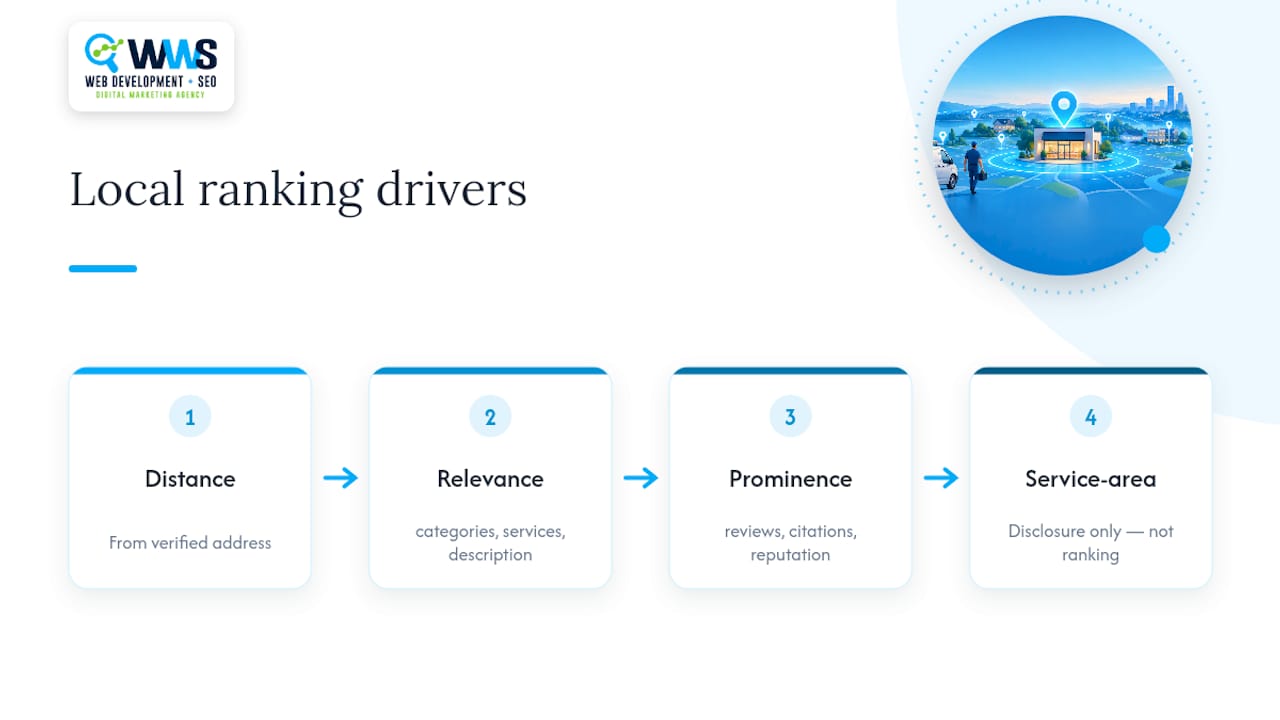
The practical takeaway: your service-area field is a disclosure tool, not a ranking lever. If you want real visibility in a town 25 miles away, you need local content, local reviews, and local citations pointing at that specific place, a point echoed in independent local SEO guidance as well.
Best practices for optimizing coverage and reach
Settings alone won’t expand your footprint. The businesses that genuinely grow their coverage pair accurate profile data with supporting content and proof.
- Build one honest area page on your website for each place you actively service, not a generic template with the city name swapped in.
- Choose the most specific primary category available and add individual service items with plain, human-readable descriptions.
- Prioritize reviews and photos that show real work performed in the areas you list, since generic stock photos and out-of-area reviews do little for prominence.
- Avoid doorway-style pages that repeat the same paragraph with a different city name. Each page should include local landmarks, honest service notes, and testimonials from that area.
- If you run Local Services Ads, revisit your ad service-area settings separately, since Local Services Ads targeting is configured independently from your main Business Profile.
Investing in this kind of local content pays off over time rather than overnight. As outlined in broader local SEO guidance, sustained visibility comes from consistent local signals, not from a longer list of service areas.
Pro Tip: Build your area pages around genuine local detail, like a nearby landmark or a recent job you completed there, rather than keyword-stuffed city names.
Common mistakes that hurt visibility or trigger suspension
A handful of avoidable errors account for most of the service-area problems we see on client audits.
- Listing far-flung or fabricated service areas to inflate reach, which practitioner guidance flags as a common trigger for spam review and profile suspension.
- Leaving your home address visible when you should have it hidden, a mistake only correctable by switching to hybrid status with permanent, verifiable signage.
- Creating a second Business Profile for the same service area instead of opening a genuinely staffed second location.
- Skipping verification evidence such as photos of branded vehicles, licenses, or worksite signage when Google requests proof of a legitimate service-area operation.
Fixing these issues usually starts with an honest audit of what your business can actually document, since Google’s review process increasingly asks for evidence rather than taking listings at face value.
Post-setup checklist and ongoing monitoring
Once your service areas are configured correctly, monitoring keeps small problems from becoming ranking losses.
- Confirm your verification status and double-check that your hidden address is current and accurate.
- Use Google Business Profile Insights and Google Search Console to track impressions and search queries by area.
- Track how quickly you’re gathering reviews in each target area and how your localized pages perform in search.
- Reassess whether a second staffed location makes more sense than continuing to stretch SEO signals across a wide territory.
Revisit this checklist quarterly, since service areas that made sense at launch can drift out of date as a business grows.
Fixing common service area setting problems
Most service-area issues fall into a small number of recurring patterns, and each has a specific fix.
A saved service area disappears or reverts. This usually means the entry wasn’t matched to a valid Google-recognized place. Re-enter the location and select the autocomplete suggestion rather than typing free text.
The address won’t hide. Business type is the likely cause. A hybrid listing with signage can keep an address visible, but a true service-area business must remove any storefront designation before the address setting will hide.
A new area added has no visible impact after weeks. This is expected: service-area entries are disclosure fields, not ranking signals. Build a local page, request reviews from customers in that area, and confirm local citations before expecting movement.
Verification requests reference address or coverage discrepancies. Gather photos of branded vehicles, licenses, or job-site signage that match your listed service areas, since Google increasingly asks for this kind of evidence.
Profile flagged or suspended after adding several new areas. Remove any speculative or unrealistic entries first, keep the list limited to places you can document, and request reinstatement through Google’s standard review process.
When to DIY versus bring in a local SEO partner
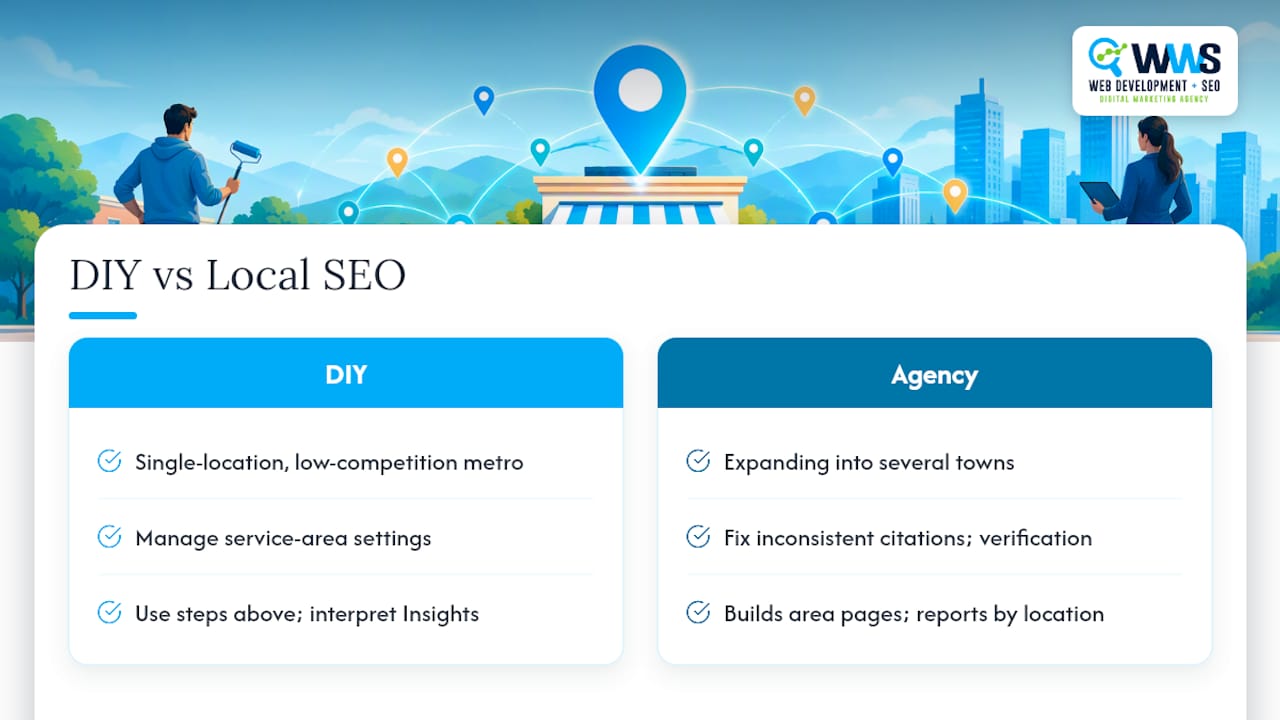
A single-location business in one low-competition metro can usually manage its own service-area settings with the steps above. The math changes once you’re expanding into several towns, cleaning up inconsistent citations, or competing for map pack spots against established local players.
A capable agency partner handles verification support, builds the area pages that actually move rankings, and reports on impressions and calls by location rather than leaving you to interpret raw Insights data alone.
— Online Marketing Experts
How WWS helps service-area businesses grow their reach
Getting your service areas configured correctly is only the starting point. Real growth in nearby towns comes from area pages, review strategy, and citation work that most business owners don’t have time to build alongside running their company.
This work is often handled in-house by agencies for contractors, restaurants, and service businesses serving local areas.
- Google Business Profile setup and service-area configuration done by certified specialists.
- Localized area page creation built around your real coverage, not templated city swaps.
- Review and citation strategy designed to build prominence in the towns you actually serve.
- Local Services Ads review and adjustment for businesses running paid lead campaigns alongside organic visibility.
Clients work with one in-house team rather than juggling multiple freelancers, with reporting tied to calls and leads rather than vanity metrics. Visit our Local SEO services page to see how we approach service-area optimization, or reach out to talk through your current setup.
Sources
- Manage your service areas for service-area & hybrid businesses – Google Business Profile Help
- Locations: Google My Business API reference
FAQ
How many service areas can you have on Google Business Profile?
You can add up to 20 named places, such as cities, ZIP codes, counties, or neighborhoods. Radius-based entries are not allowed, and Google recommends keeping the total area within roughly two hours of driving time from your business base.
How do I set up a business as a service-area business on Google?
In your Business Profile dashboard, select Edit profile, go to Location, and choose Service area to add the places you serve. If you don’t serve customers at your business address, you’ll also need to hide that address, since Google’s guidance requires this for pure service-area businesses.
How do I list the services my business offers on my profile?
Under the Services section of your Business Profile, select your primary category first, since it drives which service suggestions Google offers. Add each service individually with a short, plain-language description rather than relying on the category alone.
What does “service area” mean on a Google Business Profile?
A service area is the list of cities, ZIP codes, counties, or neighborhoods where a business travels to serve customers, used instead of or alongside a physical storefront address. It tells customers where you operate, but according to Google’s ranking documentation, it does not itself determine how you rank in those areas.
Does adding more service areas improve local search ranking?
No, adding more areas to the list does not directly improve ranking, since distance is calculated from your verified business address rather than from listed cities. Genuine visibility in a new area comes from local content, reviews, and citations specific to that place, as outlined in independent local SEO analysis.