





For most small and medium business websites, embedding a booking widget or installing a lightweight plugin delivers the best mix of speed, user experience, and cost. Before picking a path, know your four options:
- Link to an external booking page — fastest, but sends visitors off your site
- Embed a widget or iframe — keeps clients on-site with minimal development
- Install a plugin or app — best when you’re already on WordPress, Shopify, Squarespace, or Wix
- Build a custom API integration — for businesses with unusual workflows or existing software to sync
Most SMBs should start with an embed or plugin. Reserve custom API work for cases a plugin genuinely can’t handle.
Key Takeaways
Website booking integration works best when the method matches the business: embeds and plugins for most SMBs, custom API builds only when workflows demand it.
| Point | Details |
|---|---|
| Start with embed or plugin | These deliver the best balance of speed, cost, and on-site user experience for most small businesses. |
| Reserve custom API builds | Only pursue custom integration when you need CRM/POS sync or multi-location logic a plugin can’t handle. |
| Verify calendar sync first | Two-way Google or Outlook sync prevents double bookings and is worth confirming before you commit to any vendor. |
| Budget for hidden costs | Transaction fees, PCI compliance, and developer time for conflicts often exceed the advertised monthly price. |
| Get agency help when stuck | Wizerunekwsieci builds booking-ready websites when plugin conflicts or custom workflows outgrow a DIY setup. |
Table of Contents
- Comparing Website Booking Integration Methods At A Glance
- Method 1: Link To An External Booking Page
- Method 2: Embed A Booking Widget Or Iframe
- Method 3: Install A Plugin Or Platform App
- Method 4: API Or Custom Integration For Unique Workflows
- Platform-Specific Notes For WordPress, Shopify, Squarespace, And Wix
- Which Integrations Do You Need Before Launch?
- What Does Website Booking Integration Actually Cost?
- How Do You Choose The Right Method And Vendor?
- Your Implementation Checklist For This Week
- Frequently Asked Questions
- Sources
Comparing Website Booking Integration Methods At A Glance
Each method trades speed against control. A hosted link takes an afternoon; a custom API build can take two months. Here’s how they stack up on the factors that actually affect your business.
| Method | Speed | Control | Cost | Developer Effort | UX Continuity |
|---|---|---|---|---|---|
| External link | Hours | Low | Free to low | None | Low (leaves site) |
| Embed/iframe | 1 to 3 days | Medium | Low to moderate | Minimal | High |
| Plugin/app | 1 to 3 days | Medium | Low to moderate | Low | High |
| API/custom | Weeks to months | High | High | Significant | Highest |
- Best for external links: solo operators who want something live today.
- Best for embeds: service businesses that need bookings to feel native to the site.
- Best for plugins: anyone already running WordPress, Shopify, Squarespace, or Wix.
- Best for API builds: multi-location businesses syncing booking data with a CRM or point-of-sale system.
Watch for platform lock-in on every option: hosted links and some plugins make it hard to export client data if you switch vendors later.
Method 1: Link To An External Booking Page
This is the fastest way to accept appointments online, and it works with any website, even one you can’t edit directly. Addagio’s integration guide groups this among the three practical approaches that don’t require rebuilding your site.
Setup is simple:
- Create a hosted booking page through your scheduling provider.
- Add a “Book Now” button in your header or navigation, linking to that page.
- Decide whether it opens in a new tab or a popup window.
Pros: live in under an hour, no coding, works on any CMS. Cons: visitors leave your site, which can hurt brand continuity and dilutes the SEO value of your own pages.
Pro Tip: If you use an external link, set it to open in a new tab. That way your website stays open in the background and the visitor doesn’t feel like they’ve left for good.
Expect free to $30 a month depending on the provider, with setup measured in hours, not days.
Method 2: Embed A Booking Widget Or Iframe
Embedding keeps the entire booking flow on your own domain, which matters more than most owners realize. Zenoti’s platform documentation notes that embedded widgets support branded, always-on booking and connect directly to POS and CRM systems, while Lodgify confirms its widget works on any CMS, including WordPress, Squarespace, Wix, and Webflow.
Technically, an embed drops a snippet of code into your page that renders the booking calendar inline; an iframe loads the provider’s booking page inside a framed window on your site. Either way, check these before launch:
- Responsive height so the calendar doesn’t get clipped on mobile
- Lazy-loading so the widget doesn’t slow your page speed score
- Accessibility (keyboard navigation, screen reader labels)
- CORS settings and iframe sandboxing permissions
- Mobile viewport rendering across at least three screen sizes
Pro Tip: Test your embed on a slow connection before launch. A calendar that loads instantly on office Wi-Fi can stall for ten seconds on someone’s phone in a parking lot, and that’s often the moment you lose the booking.
This method beats a plugin when your booking provider isn’t tied to your CMS, and beats a full API build when you don’t need custom logic.

Method 3: Install A Plugin Or Platform App
If your site runs on WordPress, Shopify, Squarespace, or Wix, a plugin or app is usually the path of least resistance. Square’s own setup documentation walks through exactly this: create a free hosted booking site and link to it or embed the advanced widget with a block of HTML that filters by service or staff member.
Quick actions by platform:
- WordPress: Install the booking plugin, configure services and availability, then insert the shortcode or HTML block into a page.
- Shopify: Add the booking app from the Shopify App Store, place it on a page or product template, and confirm checkout works on mobile.
- Squarespace: Use the built-in Acuity Scheduling integration or a code block, then add a header CTA button.
- Wix: Install the Wix Bookings app or embed a third-party widget, then test the responsive layout on a phone.
Before going live, run through a compatibility checklist: theme conflicts, PHP or JavaScript version mismatches, plugin conflict testing, and a staging deployment so a bad update doesn’t take your booking page down live.
Pros: native to your existing platform, moderate cost, no custom code. Cons: widget conflicts with your theme, caching issues that hide new availability, and SSL warnings if the embed isn’t served over HTTPS.
Method 4: API Or Custom Integration For Unique Workflows
Custom API integration makes sense when a business runs multiple locations, needs bookings to sync with proprietary software, or requires logic no off-the-shelf plugin supports. This is the most capable option and also the most expensive to build and maintain.
A typical architecture looks like this:
- Booking interface on your site sends a request
- API authenticates the request and checks availability
- Scheduling engine confirms or rejects the slot
- Webhooks fire to notify your CRM or point-of-sale system
- Confirmation and reminder messages get triggered automatically
The Wikipedia entry on APIs is a useful primer on endpoints, authentication, and webhooks if you’re evaluating whether a vendor’s API can actually support your workflow. Security matters here: use OAuth or API keys for authentication, keep payment processing PCI-compliant by tokenizing card data or redirecting to a payment gateway, and store only the personal information you actually need.
For most small businesses, this route takes anywhere from two weeks to two months of development time, and it’s rarely justified unless a plugin has already proven insufficient.
Platform-Specific Notes For WordPress, Shopify, Squarespace, And Wix
Each platform has its own quirks worth knowing before you start.
- WordPress: Build and test on a staging site first. Confirm the shortcode or HTML block renders correctly, and check that your caching plugin and SSL certificate don’t interfere with the embed.
- Shopify: Install the app through the Shopify App Store, then place the booking button on a dedicated page or inside a product template. Test the mobile checkout flow specifically, since Shopify themes vary widely in mobile responsiveness.
- Squarespace: Add the booking system through a code block or a built-in Scheduling integration, then add a “Book Now” CTA to your site header.
- Wix: Use the native Wix Bookings app for the smoothest experience, or embed a third-party widget if you need features Wix doesn’t offer natively.
The common pitfall across all four: skipping the mobile test. A calendar that looks fine on a desktop monitor can break entirely on a five-inch screen.
Which Integrations Do You Need Before Launch?
A booking button that works is only half the job. The features underneath it determine whether you get clean bookings or a mess of double-bookings and no-shows.
- Two-way calendar sync with Google Calendar or Outlook, so a manually added appointment blocks that slot online too
- Payment gateway with PCI compliance if you’re collecting deposits or full payment at booking
- Automated SMS and email reminders to cut down no-shows
- CRM or marketing tool connections, sometimes through a middleware layer like Zapier when YouCanBookMe’s documentation notes thousands of available integrations
- Google Reserve or social channel booking, which lets clients book directly from a Google Business Profile or Instagram
Pro Tip: If you run a salon or clinic, make sure clients can pick a specific stylist or provider and that the system enforces buffer time between appointments. Generic scheduling tools often skip this, and it’s the single biggest source of booking errors in service businesses.
If you serve clients across time zones or run multiple locations, confirm the booking display automatically converts to the visitor’s local time. Nothing kills trust faster than a client showing up an hour early because the calendar showed the wrong zone.
What Does Website Booking Integration Actually Cost?
Budget depends almost entirely on which method you choose, and the gap between the cheapest and most expensive option is wide.
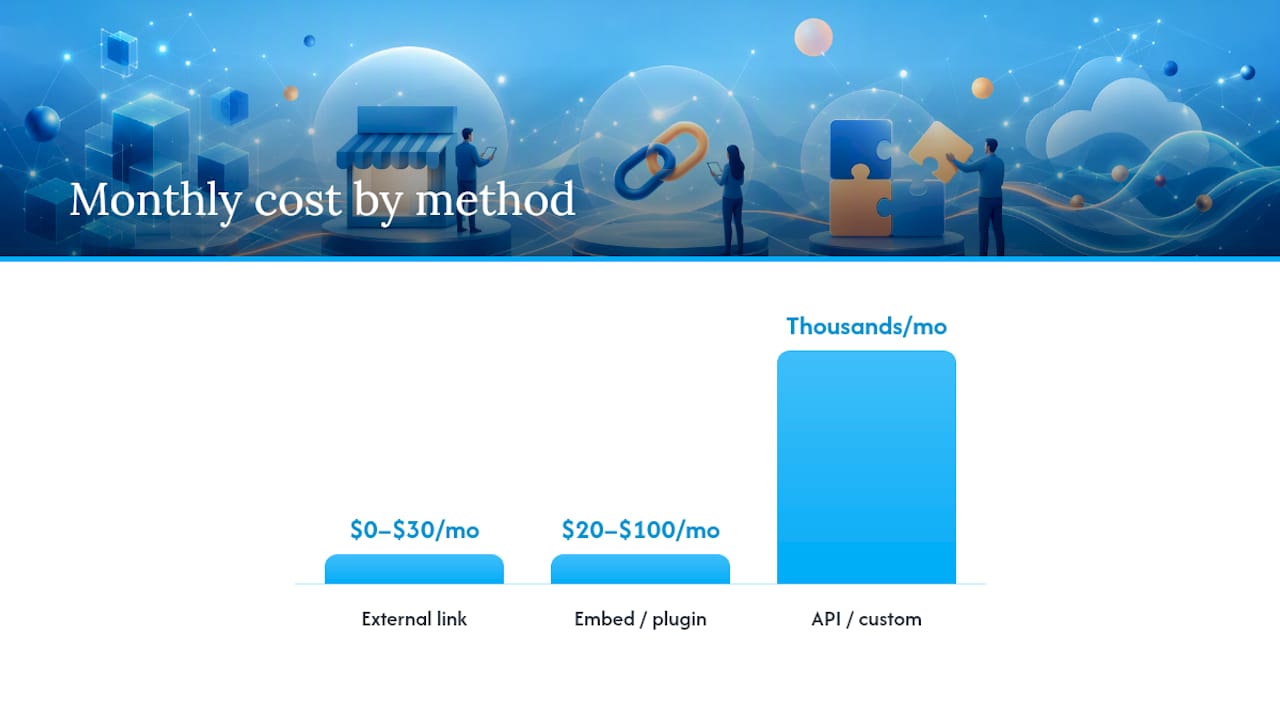
- External link: hours to set up, often free, sometimes $20 to $30 a month for the booking platform itself.
- Embed or plugin: one to three days including testing, typically $20 to $100 a month depending on features like payment processing and SMS reminders.
- API or custom integration: two to eight or more weeks of developer time, with costs running into the thousands depending on complexity.
GlossGenius notes that enterprise-level booking solutions can run significantly more expensive than the basic tools most SMBs actually need, which is worth remembering before you sign up for a feature set built for a chain, not a single location.
Hidden costs catch a lot of business owners off guard. Developer time for a “quick” plugin install can balloon if your theme has conflicts. SSL certificates and PCI compliance add ongoing overhead if you’re processing payments directly. And every integration you add, from CRM sync to SMS reminders, tends to carry its own monthly line item. Budget for maintenance, not just setup.
How Do You Choose The Right Method And Vendor?
Run through this checklist before signing up with any booking vendor:
- Can you export your customer data if you switch providers later?
- Does calendar sync run both ways, or does it only push out and never pull in?
- Is rescheduling and cancellation simple enough that clients do it themselves instead of calling?
- Are refunds and payment handling built in, or do you need a separate system?
- Is there API or webhook access if you need to connect other tools down the line?
- Does the booking flow actually work well on a phone, not just a desktop preview?
Red flags worth walking away from: no clear data export option, calendar sync that only goes one direction, a mobile experience that requires pinching and zooming, missing PCI-compliant payments when you need to collect money, or pricing pages that hide fees until checkout.
When trade-offs come up, prioritize in this order: conversion-friendly UX first, data ownership second, integration depth third, and budget last. A cheap tool that loses bookings costs more than an expensive one that converts.
Your Implementation Checklist For This Week
- Pick your method: link, embed, plugin, or API, based on the comparison above.
- Create a test account with your chosen booking provider.
- Configure your services, staff members, and buffer times.
- Set your real availability, including holidays and time-off blocks.
- Connect your Google or Outlook calendar for two-way sync.
- Add a “Book Now” button to your header, homepage, and service pages, following the placement guidance Rezdy recommends.
- Run three live test bookings, on desktop and on mobile.
- Confirm confirmation emails and reminder texts are actually sending.
Test everything on a staging copy of your site first if your platform supports it. Expect a working embed live within one business day once you’ve picked a provider.
An Agency’s Take On What Actually Moves The Needle
We’ve watched small businesses replace phone-only booking with an embedded widget and immediately see more confirmed appointments. The fastest win: add a header “Book Now” button linked to an inline page today.
Get Help Wiring Booking Into Your Website
A DIY plugin install works for plenty of businesses, but if your theme keeps breaking the widget or you need bookings synced with a custom CRM, that’s a web development problem, not a booking software problem. Wizerunekwsieci builds sites where the booking flow, page speed, and local search visibility all work together instead of fighting each other.
A few reasons local business owners bring us in for this kind of work, including those listed on local businesses in southern california, are:
- We’ve delivered 200-plus client projects, including service businesses that needed booking tied directly into their scheduling and local visibility strategy.
- Our case studies, like the Global Clinic project, show booking functionality paired with the local SEO that actually drives clients to click it.
- We handle the technical side, plugin conflicts, staging, mobile testing, so you’re not troubleshooting a broken calendar at 9 p.m.
If your current site can’t cleanly support a booking widget, or you want the integration built right the first time, start with our website design services and tell us what platform you’re on.
Frequently Asked Questions
What is the easiest way to add booking to my website?
Linking to an external hosted booking page is the fastest option, often live within an hour, though it does send visitors away from your site temporarily.
Do I need a developer for website booking integration?
Not for an embed or plugin. Most platforms provide copy-paste code or a one-click app install. A developer becomes necessary only for custom API work.
Will a booking widget slow down my website?
It can if not lazy-loaded properly. Confirm your provider supports lazy-loading so the widget only loads when a visitor scrolls to it.
Can I accept payments through an embedded booking widget?
Yes, most embedded widgets support PCI-compliant payment processing directly, though transaction fees typically apply per booking.
How do I handle clients booking from different time zones?
Choose a provider that automatically detects and converts to the visitor’s local time zone. This is especially important for remote consultations or multi-location businesses.
Sources
- How to Add Online Booking to Your Existing Website (2026 Guide) | Addagio
- Online Salon Booking Software: Book Appointments 24/7 | Zenoti
- Direct booking widget | Lodgify
- Set up online booking with Square Appointments (help article) | Square