





To verify your Google Business Profile, sign in to the Google Account that manages the listing, find or claim the profile, and click “Get verified.” Verification is required before you can edit business details, respond to reviews, or view performance data. Google will show you only the methods it supports for your specific profile, and for most businesses today that means video, which typically takes up to five business days to review.
TL;DR:
- Verification methods are limited to Google-supported options based on your profile, with video verification now being the default for most new profiles.
- Video verification requires a live, unedited, 30-second-plus recording showing exterior signage, interior areas, and proof of management, narrated throughout.
- If video isn’t available, options include live video calls, phone or SMS codes, email, postcards, or bulk verification for chains, with postcards becoming less common.
- Failed verification attempts can usually be remedied by correcting specific issues like blurry footage or mismatched details and resubmitting through the same dashboard.
- Outsourcing verification and profile optimization to specialists is advisable for multi-location businesses or repeated rejections, as proper preparation significantly increases approval chances.
Table of Contents
- What Are the Google Business Verification Methods?
- How Do I Start the Google Business Verification Process?
- What Does Video Verification Actually Require?
- What If Google Offers a Different Verification Method?
- What Do I Do If Verification Fails?
- What Happens Once Your Profile Is Verified?
- When It Makes Sense to Bring in a Local Expert
- Why Video Verification Deserves More Attention Than It Gets
- Ready to Get Your Business Profile Verified and Working for You?
- Sources
- FAQ
What Are the Google Business Verification Methods?
Google doesn’t let you pick a verification method off a menu. It runs a background check on your business category, location, and history, then shows you whichever options fit. You won’t see all of them, and that’s normal.
Here’s what’s currently in circulation:
- Video verification. A live, unedited recording showing your business location and proof that you manage it. This has become the default for most new profiles.
- Live video call. A real-time session with a Google representative where you show the same proof on camera, on the spot.
- Phone or text (SMS). Google sends a short code to your business phone number, which you enter into the dashboard.
- Email. A code goes to an email address tied to your domain, though Google often follows up with manual review anyway.
- Postcard by mail. A physical card with a code arrives at the business address, usually within about two weeks.
- Bulk verification. For businesses with 10 or more locations, using the Chains option inside Business Profile Manager.
Postcard used to be the go-to option, but it’s grown rarer as Google leans more heavily on video verification to confirm a business is real and active. If your business is already confirmed through Search Console, or qualifies for bulk verification, you may skip the waiting entirely and get verified instantly. Check those two routes first if speed matters more than anything else.
How Do I Start the Google Business Verification Process?
Getting into the verification flow takes a few minutes if your profile information is accurate. Rushing this part is exactly how businesses end up stuck in rejection loops later.
- Find or claim your profile. Go to business.google.com/add, or search your business name on Google Maps and look for “Claim this business” or “Own this business?”
- Sign in with the right Google Account. Use the account you actually want managing this profile long term, not a personal account you’ll lose access to later.
- Review your business details. Confirm your name, address, phone number, and category are exact matches for your real-world signage and paperwork. Mismatches here are a leading cause of rejected requests.
- Add suite or floor numbers if applicable. A missing unit number can make video or postcard verification fail even when everything else is correct.
- Click “Get verified.” Google will scan your account and show you the method or methods available.
- Pick carefully if given a choice. Avoid requesting a postcard more than once. Duplicate requests confuse the system and can delay both.
- Confirm your phone can receive texts before choosing SMS. A landline or auto-attendant number will not work.
What Does Video Verification Actually Require?
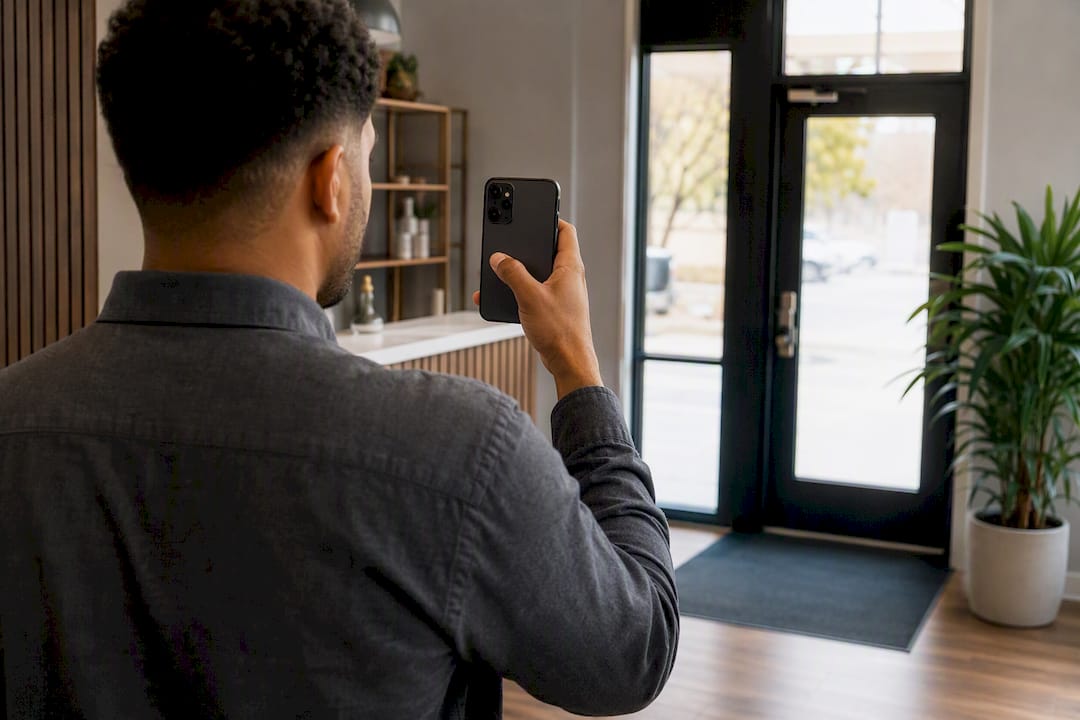
Video verification isn’t a quick selfie in the parking lot. Google requires a live, unedited, single continuous take of at least 30 seconds, recorded and uploaded straight from a mobile device. Pre-recorded, spliced, or edited clips get rejected automatically, no exceptions.
What you show depends on your business type:
- Storefronts: exterior signage, street markers or nearby landmarks, your entrance with the business name visible, and interior areas customers don’t normally see.
- Service-area businesses: branded vehicles, equipment, inventory, or business documents like a license or lease agreement.
- Both types: proof that you’re the one managing the location, such as unlocking a door, accessing a register, or holding paperwork with your business name on it.
Skip anything that reveals private customer information, employee personal details, or unrelated third-party property. Google’s reviewers are trained to reject footage that raises privacy concerns, not just footage that fails to prove ownership.
To record and upload: open your Business Profile on the Google Maps or Search app, tap “Get verified,” select video, then follow the on-screen prompts to record and submit in one session. You typically get one clean shot, so plan the sequence before you hit record.
Pro Tip: Narrate as you film. Say your business name, address, and what you’re showing out loud. It gives Google’s reviewers context they can’t get from silent footage, and it makes rushed, choppy filming much less likely.
Submitting incomplete or visibly edited video is one of the most common rejection triggers, so aim for 60 to 90 seconds rather than cutting it close to the 30 second floor. Steady your phone, film in good lighting, and walk through the space deliberately instead of rushing.
What If Google Offers a Different Verification Method?
Not every profile gets the video option, and some owners are offered a mix of alternatives instead.
- Live video call: You join a session with a Google representative and show the same proof you’d film for standard video verification, just live and interactive. Availability is limited to certain support hours, and you may sit in a queue before connecting.
- Phone or SMS: Google sends a five-digit code. This fails almost every time the number routes through an automated attendant or IVR menu, so use a direct mobile line if this option shows up.
- Email: Follow the link sent to your business email address. Google still frequently pairs this with manual review, so don’t assume it’s instant.
- Postcard: Request it from the dashboard, then expect roughly two weeks for delivery. The code expires after 30 days, and changing your business name, address, or category while waiting will invalidate it.
- Bulk verification: Available for chains with 10 or more locations through the Chains tool in Business Profile Manager.
What Do I Do If Verification Fails?
A failed attempt isn’t the end of the road, but ignoring the reason for rejection just wastes another five business days.
- Read the specific rejection reason under “Review issues” in your dashboard before doing anything else.
- Fix the root cause. Blurry or edited video, a mismatched address, or missing signage are the usual culprits. Re-record with sharper footage or correct the listed information.
- Resubmit through the same dashboard flow rather than starting a brand-new profile, which only creates duplicate listing problems.
- File Google’s “no more ways to verify” form if the system stops offering any method at all, and attach clear supporting documents like a business license or utility bill.
- Consider bringing in a certified specialist if you manage multiple locations, you’ve been rejected more than twice, or you’d rather hand off the entire setup.
What Happens Once Your Profile Is Verified?
Verification unlocks the controls that actually run your listing: editing your business hours and description, responding to reviews, publishing posts, viewing performance insights, and connecting booking or ordering integrations. You can confirm your status anytime inside the Business Profile dashboard under the business name.
Google may ask you to re-verify after major changes, like a new address, a different business category, or during periodic account audits. When that happens, the process runs through the same “Get verified” flow, usually with a faster review since your history is already on file.
When It Makes Sense to Bring in a Local Expert
DIY verification works for most single-location businesses willing to follow the steps carefully. But repeated rejections, multi-location chains, or a profile riddled with inconsistent details are signs it’s worth outsourcing.
WWS – Web Development + SEO is a Google and Meta Partner, and our team is made up entirely of Google and Facebook certified specialists who’ve handled this exact process across 200-plus client partnerships in the Chicago area.
- We troubleshoot failed verifications and rebuild profiles that keep getting flagged.
- We handle full profile optimization once verification clears, so the listing actually generates calls.
- We manage bulk verification for multi-location businesses that don’t have time to chase five separate postcards.
Why Video Verification Deserves More Attention Than It Gets
Most advice on this topic treats verification like a formality, a box to check between building a website and getting reviews. That’s outdated thinking. Video has quietly become the real gatekeeper for new Business Profiles, and it rewards preparation in a way postcard verification never did. A postcard either arrives or it doesn’t. A video gets judged.
The mistake we see constantly: business owners treat the 30-second minimum as a target instead of a floor. That’s backwards. A rushed 32-second clip with shaky footage and no narration reads as suspicious even when the business is completely legitimate. A well-paced 90-second walkthrough with the owner talking through signage, entry points, and internal access reads as exactly what it is: proof.
If you take one thing from this, take the sequence: exterior signage, entrance, interior control, documentation, narrated the whole way through. That order isn’t arbitrary. It’s the same logic a human reviewer uses to confirm a real business is standing in front of the camera. Skip a step, and you’ve handed them a reason to say no.
For a deeper look at how a verified profile fits into your broader online presence, this digital footprint guide is worth a read after you clear verification.
— Online Marketing Experts
Ready to Get Your Business Profile Verified and Working for You?
Verification is only the starting line. A verified profile with weak photos, thin categories, or no review strategy still won’t generate calls. WWS – Web Development + SEO combines custom web development with aggressive SEO and GEO strategies built specifically for Chicago-area contractors, restaurants, and service businesses, backed by over 200 successful client partnerships. If you’d rather hand off verification, profile optimization, and the local SEO work that follows, our web development and local SEO team can take it from here and turn your listing into a lead-generating engine.
Sources
- Verify your business on Google – Google Business Profile Help
- Verifying Google Business Profile – BrightLocal
FAQ
How Do I Get My Business Verified on Google?
Sign in to the Google Account managing your profile, claim or find your business on Google Maps or at business.google.com/add, confirm your business details are accurate, then click “Get verified.” Google will present whichever method, often video, applies to your profile.
What Does Verifying Your Business on Google Actually Unlock?
Verification gives you ownership rights over your Business Profile, letting you edit business information, respond to customer reviews, publish posts, and access performance insights. Without it, you can’t manage the listing at all.
How Do I Check if My Google Business Account Is Verified?
Open your Business Profile dashboard and look at the status next to your business name. A verified profile shows full editing access; an unverified one will prompt you to complete the “Get verified” step.
Is Google Business Verification Free?
Yes. Google doesn’t charge for any verification method, including video, phone, email, or postcard. Any service charging a fee specifically for the verification step itself is not representing Google’s process accurately.