





Start by creating a Google Analytics 4 property, adding a web data stream, and installing the tracking tag through gtag.js, Google Tag Manager, or a CMS plugin. Once the tag fires, set a few starter conversions, such as a contact form submission, phone click, and purchase or lead form, so you can have usable data sooner.
TL;DR:
- Enhanced measurement automatically tracks 90% scroll depth, outbound clicks, searches, YouTube video engagement, and downloads; confirm GA4 recognizes your site’s search parameter.
- Linking Google Ads requires Editor or Admin access in Analytics and Ads administrator access; enable automatic tagging and allow 48 hours for data.
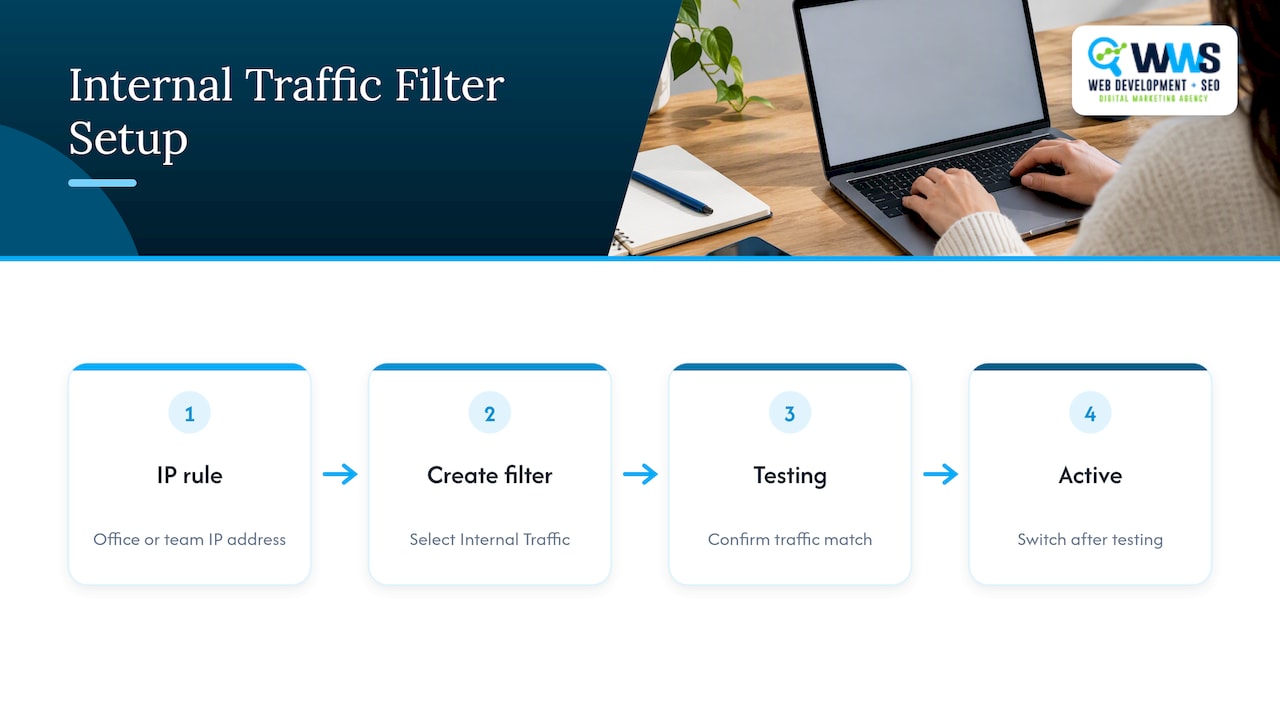
- Exclude staff visits by defining an internal traffic rule from your team’s IP address, then test the filter before activating it to protect reporting accuracy.
- GA4 stores user and event data for 2 or 14 months, while aggregated reports remain unaffected; align the setting with your privacy policy.
Table of Contents
- How to create a GA4 property and add a web data stream
- Install tracking: gtag.js, Google Tag Manager, or common CMS plugin steps
- Which events to track first and how to mark conversions
- Link Google Ads (permissions, steps, and what to expect)
- [Which GA4 reports small businesses should use first](#which-ga4-reports-small-businesses-should-use-firsthttpsbabylovegrowthaibloganalyze-website-traffic-seo-growth-2026)
- Manage users and permissions: a simple small-business policy
- Troubleshooting checklist and common setup mistakes
- Publisher perspective: how we support GA4 setup projects
- Set up data filters and exclude internal traffic
- Configure enhanced measurement features for automatic tracking
- Integrate GA4 with Google Search Console for SEO insights
- Set up custom audiences for remarketing and segmentation
- Establish proper data retention settings aligned with privacy policies
- What small businesses get wrong about analytics setup
- Get GA4 set up right the first time
- FAQ
- Sources
How to create a GA4 property and add a web data stream
You need Editor or Admin access on the Google account tied to your business to begin, and the setup itself happens in the Admin section of Google Analytics. Google’s own beginners guide lays out this process as the first of four practical steps for small businesses, starting with the property itself before moving to reports and user access.
Follow these steps in order:
- Sign in to Google Analytics and click Admin, then Create Property.
- Name the property after your business, set your reporting time zone and currency, and confirm your industry category.
- Add a web data stream under the new property by entering your site URL and a stream name.
- Copy the Measurement ID (it starts with “G-”) that Analytics generates for that stream.
- Open DebugView or the Realtime report and browse your own site to confirm events start appearing within a minute or two.
DebugView and Realtime are the fastest way to confirm the property is actually collecting data, a point Google’s own documentation on analytics for beginners and small businesses emphasizes for anyone validating a fresh install. If nothing shows up after a few page loads, the tag likely is not installed yet rather than the property being misconfigured, which is the next thing to check.
Install tracking: gtag.js, Google Tag Manager, or common CMS plugin steps
Three paths lead to the same result: your Measurement ID loaded on every page. Which one fits depends on how your site is built and how often you expect to add new tracking later.
- gtag.js: paste the snippet Analytics generates, with your Measurement ID already inserted, directly into the
<head>of every page, often through your theme’s header file. - Google Tag Manager (GTM): install the GTM container snippet once, then add GA4 as a tag inside GTM’s interface without touching site code again.
- CMS plugin: on WordPress, a plugin like Site Kit by Google or an SEO plugin’s built in Analytics field lets you paste the Measurement ID into a settings page. Shopify has a similar field under Online Store preferences.
Test each method with GA4’s DebugView or the Tag Assistant browser extension, both of which show whether the tag fired and which events it sent.
GTM tends to be the better long-term choice because it lets you add or change tags, like conversion tracking or remarketing pixels, without asking a developer to edit code every time. The tradeoff is a short learning curve up front.
Pro Tip: If you switch from gtag.js to GTM, remove the original gtag.js snippet completely, otherwise GA4 will count every pageview and event twice.
The most common installation mistakes are pasting the snippet into the wrong template (so it only loads on the homepage), leaving an old Universal Analytics tag running alongside GA4, and forgetting to publish a GTM container after adding the tag, which leaves it inactive on the live site.
Which events to track first and how to mark conversions
GA4 tracks user actions as events, but only the events you promote to key events (GA4’s term for conversions) show up in conversion reports and can feed Google Ads bidding. Consistent naming matters here: a contact form event called contact_form_submit on every page is far easier to report on than five differently named variants.
Start with a short list rather than trying to capture everything at once:
page_viewandsession_startarrive automatically once the tag is installed.view_itemorview_productfor anyone browsing a service or product page.contact_form_submitoradd_to_cartfor the first real intent signal.lead_submitorpurchasefor the outcome that actually matters to your business.
To create a custom event, go to Admin > Events > Create Event, define the trigger (a button click, a thank-you page URL, or a CSS selector), and name it clearly. Once it is firing in DebugView, go to Admin > Events and toggle Mark as key event next to it.
A practical example: set a trigger for anyone who lands on /thank-you, name the event contact_form_submit, and mark it as a key event. For phone leads, a click event on a tel: link tracks calls initiated from your site, which pairs well with Google Business Profile call tracking if you also want to measure calls that start from your Google listing.
A short starter list like this, rather than chasing every possible micro-event, is what Google’s own small business guidance recommends for anyone new to the platform.
Link Google Ads (permissions, steps, and what to expect)
Linking Google Ads to GA4 requires Editor or Admin permissions in Analytics and administrative access in the Ads account, and the link itself is created from Admin > Product Links > Google Ads Links in GA4, according to Analytics Help.
- Once linked with auto-tagging enabled, GA4 can mark events like
add_to_cart,begin_checkout, or your lead form submission as key events that import into Ads as conversions, per Analytics Help. - Linked Ads data typically appears in Analytics within 48 hours, the same window Analytics Help cites for new links.
- A property can have many Google Ads links, so most small businesses will not hit the limit, but an agency managing multiple clients should use a manager account if that happens.
If Ads data still is not showing after two days, the most common causes are a link that was never actually created, auto-tagging left disabled, or the GCLID (the tracking parameter Ads appends to your URL) getting stripped during a redirect, all documented in Google’s troubleshooting guide for missing Ads data. Our guide to Google Ads for local businesses covers campaign setup if you have not launched Ads yet.
Which GA4 reports small businesses should use first
A handful of reports do most of the work. Learn these before worrying about the rest of the interface.
- Realtime confirms your tag is working right now, which is the fastest check after any change to your site or tracking setup.
- Engagement > Pages and screens shows which pages people actually spend time on, useful for spotting your best-performing service page or blog post.
- Conversions tracks your key events over time, so you can see whether contact form submissions or calls are trending up or down.
- Acquisition and Advertising reports break down which channels, organic search, paid ads, or referrals, are sending the traffic that converts.
A practical use case: after publishing a new campaign landing page, open Realtime to confirm visitors are arriving, then check Conversions a day later to see whether the contact form event tied to that page is firing as expected. If it is not, that is your signal to recheck the installation rather than assume the campaign failed. For a broader look at turning that traffic into leads, our piece on increasing website leads pairs well with this reporting routine.
Manage users and permissions: a simple small-business policy
Match access to the role, not the person’s title. The business owner should hold Admin, a developer or agency handling the technical build should get Editor, and marketing staff who only need to read reports should get Analyst or Viewer access. Add or remove people under Admin > Account Access Management or Property Access Management.
A good habit for small businesses working with outside help: create a separate login for any agency or contractor rather than sharing your own credentials, and revoke that access the day the engagement ends.
Troubleshooting checklist and common setup mistakes
Most setup problems trace back to one of a few causes:
- No data at all: check the page source for the Measurement ID, then confirm with DebugView that the tag fires on page load.
- Duplicate events: usually means both gtag.js and GTM are installed at once. Remove one.
- Missing Ads data: confirm the link exists, that auto-tagging is on, and wait the full 48 hours before assuming something is broken, per Google’s troubleshooting guidance.
- Modeled data appearing instead of real counts: this happens under consent mode when users decline cookies. Google’s documentation notes that behavioral modeling only activates once a property meets specific daily volume thresholds, so smaller sites may simply see gaps rather than modeled estimates.
Publisher perspective: how we support GA4 setup projects
We handle GA4 property setup, tag deployment, event mapping, and dashboard creation as part of our broader marketing work for local businesses. If you are comfortable in Admin settings and have an hour to spare, DIY setup works fine. If you would rather have it configured correctly the first time and tied to a working ad or SEO strategy, that is where we come in.
Set up data filters and exclude internal traffic
Your own team’s visits, and your agency’s, can quietly inflate pageviews and distort conversion rates if left in the data. GA4 handles this through data filters rather than the old IP-exclusion method in Universal Analytics.
To set one up, go to Admin > Data Settings > Data Filters, create a new filter, and choose Internal Traffic as the type. This requires first defining an internal traffic rule under Data Streams > Configure Tag Settings > Show More > Define Internal Traffic, where you list the IP address (or range) your office or team uses. Once that rule exists, the filter can exclude traffic matching it, and GA4 lets you run it in Testing mode first to confirm it catches the right traffic before switching it to Active.
Skipping this step is a common reason small business owners see inflated engagement numbers or a confusing spike in direct traffic that does not match any real campaign. It is a five-minute fix that pays off every month after.
Configure enhanced measurement features for automatic tracking
Enhanced measurement is turned on by default for every new web data stream, and it automatically captures several events without any extra setup: scroll depth past 90%, outbound link clicks, site search queries, video engagement on embedded YouTube videos, and file downloads.
Check and adjust these under Admin > Data Streams > [your stream] > Enhanced Measurement, where each toggle can be switched on or off individually. For most small businesses, leaving all of them on is the right call since they require no code changes and immediately add useful behavioral detail, like which outbound links visitors click or whether they scroll far enough to see a call-to-action near the bottom of the page.
The one setting worth reviewing is site search tracking, which only works correctly if GA4 recognizes your site’s search query parameter (commonly “s” or “q”). If your site uses a different parameter, add it manually in the same settings panel so search terms are captured correctly instead of being missed entirely.
Integrate GA4 with Google Search Console for SEO insights
Linking Search Console to GA4 brings organic search data, the actual queries people used to find your site, into the same interface where you already track conversions. This link lives under Admin > Product Links > Search Console Links, and it requires verified ownership of your site in Search Console using the same Google account.
Once connected, a new set of reports becomes available showing which search queries, landing pages, and countries drive organic traffic, viewable alongside the engagement and conversion data you already have. That combination answers a question GA4 cannot answer alone: not just how visitors behave once they arrive, but what they searched to get there.
For a small business investing in content or local search visibility, this link turns GA4 into a feedback loop for SEO work rather than just a traffic counter. Our guide on how to do SEO for your website walks through the broader strategy this data supports.
Set up custom audiences for remarketing and segmentation
An audience in GA4 is a group of users who share a trait or behavior, people who visited a pricing page without converting, for example, or everyone who submitted a contact form in the last 30 days. Audiences are built under Admin > Audiences > New Audience, either from scratch or using one of GA4’s suggested templates.
Once an audience is defined, it can be exported to Google Ads for remarketing, letting you show ads specifically to people who already showed interest rather than spending budget on cold traffic. This only works once Ads is linked to the property, so audience building and the Ads link described earlier go hand in hand.
Segmentation also helps inside GA4 itself: comparing how an audience of return visitors engages with your site versus first-time visitors often reveals which content or pages actually build trust over repeat visits, information that is easy to miss when looking at aggregate totals alone.
Establish proper data retention settings aligned with privacy policies
GA4 lets you control how long user-level and event-level data is stored before it is automatically deleted, under Admin > Data Settings > Data Retention. The options are typically 2 months or 14 months, and this setting does not affect aggregated reporting data, only the detailed data used for certain exploration reports.
For most small businesses, setting retention to 14 months gives enough history for year-over-year comparisons without holding data indefinitely. Whichever period you choose, it should align with whatever your own privacy policy promises visitors about how long their data is kept, since a mismatch between the two is an easy inconsistency for a visitor or regulator to spot.
This setting is also where consent mode and behavioral modeling intersect: properties that implement consent mode and meet Google’s documented thresholds for daily event volume and user counts can fill some of the gaps left when visitors decline cookie consent, but smaller sites may simply see less complete data rather than a modeled estimate.
What small businesses get wrong about analytics setup
The biggest mistake we see is businesses trying to track everything on day one, building a dozen custom events before confirming the basic tag even fires correctly. That instinct comes from good advice taken too far: more data sounds better, but a cluttered events list makes the Conversions report harder to read, not easier.
The better sequence is the one Google’s own documentation follows: get the property live, confirm data is flowing in Realtime, mark two or three key events as conversions, then expand from there once those basics are solid. Linking Ads and building audiences matter, but they are only useful once the conversion data underneath them is trustworthy.
Where conventional advice falls short is treating GA4 setup as a one-time task. Filters, retention settings, and event definitions need a second look every few months as a site changes, and that follow-through matters more than the initial configuration.
— Online Marketing Experts
Get GA4 set up right the first time
Setting up GA4 correctly, with the right events, filters, and Ads link in place, takes real attention most business owners do not have extra hours for. Our in-house team handles the full setup as part of our broader Website SEO and Local SEO work for Chicago-area businesses, so your tracking and your growth strategy are built together from day one.
Reach out through Wizerunekwsieci to request a quote on GA4 setup alongside your next website or SEO project.
FAQ
Is Google Analytics discontinued?
No, Google Analytics is not discontinued. Universal Analytics, the previous version, stopped processing new data, and GA4 is the current, actively maintained version every website should now be using.
How much does GA4 cost to use?
GA4’s standard version is free for small businesses, with no published cost from Google for the core property and reporting features. A paid enterprise tier called Google Analytics 360 exists for larger organizations with higher data volume needs, but most small businesses never need it.
Do I need a separate Google Analytics account for each website?
You can group multiple websites, like a main site and a related brand, under one Analytics account using separate properties, or keep entirely separate accounts if the businesses are unrelated. Most small businesses with one website only need a single account and a single property.
Is GA4 replacing Google Analytics?
GA4 already replaced the previous version, Universal Analytics, which Google fully retired. Any business still looking at Universal Analytics data is looking at a historical archive, not live tracking.
Sources
- GA4 behavioral modelling for consent mode – Analytics Help
- Connect Google Ads to Google Analytics – Analytics Help
- Missing Google Ads data in Google Analytics property – Analytics Help
- Analytics for beginners and small businesses