


GA4 for Local Business: Setup, Key Events and Reports
Set up GA4 for a local business: create the property, track calls, forms and direction clicks as key events, verify them and read the reports that matter.
 By WWS Team
13 min read
In this article14 sections
- TL;DR
- What GA4 can tell a local business
- Step 1: Create the property and install the tag
- Step 2: Decide what counts as a lead
- Step 3: Turn lead events into key events
- Step 4: Verify that events actually work
- Step 5: Tag your links so GA4 knows the source
- Step 6: Read the reports that matter
- Common GA4 mistakes that distort local lead data
- Perspective
- Get GA4 working with your website and local SEO
- FAQ
- Sources
- Recommended
Google Analytics 4 (GA4) is the free tool that shows a local business how many people visit its website, where they come from and which of them call, request directions or fill out a form. To get real value from it, do three things: create a property with a web data stream, mark your lead actions as key events, and check every one of them in DebugView before you trust a number. This guide walks through each step for service businesses, restaurants, clinics and contractors in Chicago and across Illinois.
We build and manage websites and local SEO for service businesses, so the approach below comes from what a local owner needs to see: leads, not a wall of charts.
TL;DR
- Create one GA4 property and a web data stream, install the tag once (directly, through Google Tag Manager or a CMS plugin), then confirm hits in Realtime.
- For a local business, a lead is usually a phone tap, a direction request, a form submission or a booking click. Track those, not just page views.
- Mark those events as key events. Key events become conversions only when shared with a linked Google Ads account.
- Tag every link you control (Google Business Profile, email, SMS, ads) with UTM parameters, or GA4 cannot tell you where visits came from.
- Review a short monthly report: users, organic search traffic, key events and top landing pages.
What GA4 can tell a local business
GA4 records what visitors do on your site: which pages they view, how long they stay engaged and which actions they take. Google’s own beginner guide for small businesses sets out the path: create a property, add a web data stream and the Analytics code, learn the interface, then configure conversions for the actions that matter to you.
For a local business, three questions matter most:
- Where do my visitors come from? Organic search, Google Business Profile, paid ads, social, email or direct visits.
- What do they do? Call, request directions, book, or leave.
- Which pages produce leads? Service pages, location pages, the home page or a blog post.
Location is also useful. The Demographic Details report (Reports, then User, then User Attributes) shows the region or city of your visitors, and a local SEO practitioner can compare that with location page traffic and proximity-based rankings. If a Naperville plumber sees most of its traffic from Rockford, something is off with targeting. If a Skokie dentist sees the right suburbs, the local SEO work is reaching the right people.
Step 1: Create the property and install the tag
Set up one property for your business website. Inside it you create a web data stream, which gives you a Measurement ID and the tag code.
You have three common ways to install the tag:
| Method | Best for | What to know |
|---|---|---|
| Google tag (gtag.js) pasted into the site header | A simple site with one developer | Fast, but every new event needs code changes |
| Google Tag Manager | Sites that will add events over time | One container holds all tags, with a Preview mode for testing |
| CMS plugin or theme setting | WordPress and similar site builders | Easiest to start, but check it does not add a second copy of the tag |
Whichever you choose, install the tag once. A duplicate tag is a classic reason for inflated numbers. Google’s documentation explains that page_view is sent automatically when a page loads or browser history changes, and that manual pageview code must disable automatic measurement to avoid duplicates. If a developer or plugin added its own pageview code, ask them which one is the source of truth.
We cover the full installation, with common errors, in our GA4 setup guide for small businesses.
Check that data is arriving
After installation, open your site in a browser tab and then look at the Realtime report in GA4. You should see yourself within a minute or two. If you do not, the usual causes are a consent banner blocking the tag, an ad blocker in your own browser or a typo in the Measurement ID. Test from a clean browser profile or a phone on mobile data before assuming the tag is broken.
Step 2: Decide what counts as a lead
Most local businesses do not make money from page views. They make money when someone picks up the phone, books a visit or asks for a quote. Many of those actions never create a “thank you” page, so GA4 will not record them unless you set that up.
A practical baseline for a local service business:
- Phone tap: a click on a link that starts with tel:, usually from a mobile visitor.
- Direction request: a click on a Google Maps or Apple Maps link.
- Form submission: a completed contact, quote or booking form.
- Booking click: a click through to a scheduling or ordering tool.
- Email click: a click on a mailto: link.
None of these is a fixed rule. A restaurant may care most about reservation clicks and direction requests. A roofing company will care about calls and quote forms. A med spa might want booking clicks and form submits. Pick the three to five actions that map to revenue in your business and name them clearly, for example phone_call_click, direction_request and form_submit.
Tracking only form fills misses a large share of local leads, because plenty of customers find the site, grab the number and call. If calls are your main lead source, read our guide on how to track phone call conversions, and for call-level detail such as which campaign produced which call, our call tracking setup guide.
Use GA4’s built-in help first
GA4’s enhanced measurement already collects some useful signals, including outbound clicks and scrolls, once it is switched on for your data stream. An outbound click can cover a link to a booking system or a mailto: or tel: link, which makes it a handy starting point. A dedicated event with a clear name is easier to report on, though, so create one for each lead action that matters.
Step 3: Turn lead events into key events
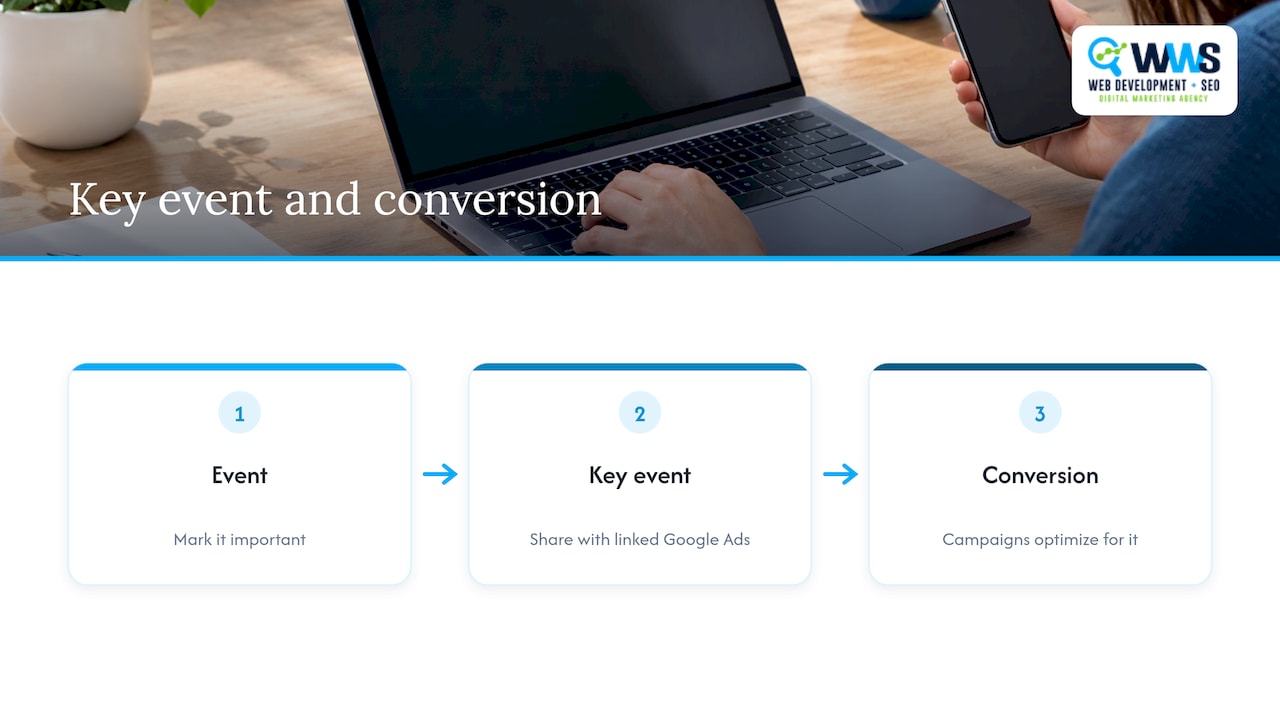
GA4 used to call these conversions. Today the term is key events: an event you have marked as important to your business.
The steps:
- Make sure the event is already arriving in GA4. Trigger it yourself once on the live site.
- In Admin, open Events, then Recent events.
- Find the event and click the star icon to mark it as a key event.
This applies only to new data, so mark events early. Anything that happened before you flipped the switch will not be counted retroactively.
Key event versus conversion
The two words are easy to mix up. An event becomes a key event once you mark it as important. It becomes a conversion once you share it with a linked Google Ads account so that campaigns can optimize for it. You do not need Google Ads to benefit: key events alone show which marketing channels produce real business outcomes inside GA4’s free reporting.
If you do run paid search, link the accounts and share only your true lead events. Sending every click as a conversion teaches the ad platform to chase low-quality traffic. Our paid campaigns team sets this up alongside the ads themselves.
Step 4: Verify that events actually work
This is the step most small business owners skip, and it is the one that decides whether your reports can be trusted.
Use DebugView, found under Admin, then Data display, then DebugView. To feed it, turn on debug mode with Google Tag Manager’s Preview mode or the Google Analytics Debugger browser extension. Then perform each action on your site: tap the phone link, click the directions button, submit the form with test details. In DebugView, each event should appear in the stream, and the key event shows a green flag icon.
A short test checklist:
- Test on a phone and on a desktop. Phone links behave differently on each.
- Submit a real form entry and confirm the event fires once, not twice.
- Check that the event does not fire when the form fails validation.
- Repeat after any site redesign, theme update or plugin change.
If an event does not appear, check for a consent banner that blocks the tag until the visitor accepts, a trigger that points at the wrong button, or a form that reloads the page in a way your trigger does not catch.
Step 5: Tag your links so GA4 knows the source
GA4 cannot guess where a visit came from when a link carries no information. Google’s guidance for marketers recommends tagging campaign URLs with UTM parameters so that Analytics can identify referring campaigns and attribute conversions properly.
For a local business, the links worth tagging are:
- The website link on your Google Business Profile
- Links in email newsletters and SMS campaigns
- Links in social posts and bios
- Print and QR code destinations
- Paid ad landing pages, if the platform does not tag automatically
Use consistent, lowercase names. A source written as “Google” in one link and “google” in another will show up as two separate rows. Our UTM tagging guide includes a naming convention you can copy.
Google Business Profile traffic
Many local customers meet your business first on the map pack. If the profile’s website button points at a plain URL, that traffic often blends into general organic or direct visits. Adding UTM parameters to the profile link lets you see how many visits, calls-to-be and key events come from the profile itself. For call data from the profile, see our walkthrough on Google Business Profile call tracking.
Step 6: Read the reports that matter
GA4 has dozens of reports. A local owner needs only a few.
| Report or metric | What it answers |
|---|---|
| Traffic acquisition | Which channels bring visitors: organic search, direct, referral, paid, email, social |
| Pages and screens | Which pages get views, active users, views per user and average engagement time |
| Key events | How many calls, direction requests and forms each channel and page produced |
| Demographic details (location) | Which cities and regions your visitors come from |
| Path to conversion | Which touchpoints came before a key event |
The Pages and Screens report, per Google’s documentation, lists Views, Active users, Views per user and Average engagement time for each page path or screen name. Use it to find the service pages that attract people and those that attract people who leave.
Two rate metrics are helpful when you compare channels. Session key event rate is sessions with a key event divided by total sessions. User key event rate is users with a key event divided by total users. A channel with fewer visits but a higher rate may be worth more than a big channel that never produces a call.
A one-page monthly summary
Owners rarely want to log in to GA4. A one-page summary with four lines is enough:
- Total users
- Local leads: phone taps, direction requests and form submits combined
- Organic search traffic as its own line
- Top five landing pages by sessions
Compare each month with the one before it, and with the same month a year ago if your business is seasonal. A Chicago HVAC company will see very different traffic in January and July, and a month-over-month comparison alone would mislead.
When everything looks like direct traffic
If most key events are credited to direct, the last click is hiding earlier steps. The path to conversion view can show that organic search often starts the journey while direct gets the final credit. That is a useful answer when an owner asks whether SEO is working.
Common GA4 mistakes that distort local lead data
- Tracking only forms. Calls and map clicks are often the majority of leads for a service business.
- Two tags on one page. This can inflate page views and sessions. Keep one installation method.
- Counting your own visits. Staff and agency traffic can inflate numbers. Filter internal traffic or test from outside your normal browser.
- Marking everything as a key event. Scrolls and page views are not leads. Reserve the star for actions that reflect revenue.
- Untagged links. Without UTM parameters, email, SMS and profile traffic cannot be told apart.
- No re-test after site changes. A new theme, form plugin or booking widget can quietly break an event.
- Ignoring consent settings. If a consent banner blocks the tag, your numbers will be lower than reality and you need to know by how much.
When the data is clean, the next question is usually what to do with it. If visits are healthy and leads are not, the fix is on the website, not in the analytics. Our guide to conversion rate optimization for local businesses covers the common leaks.
Perspective
We see the same pattern with many local service businesses: the website gets traffic, the phone rings, and nobody can say which marketing brought the call. GA4 closes that gap, but only if it is set up around how local customers actually behave.
That means treating a phone tap and a direction request as seriously as a form fill, tagging every link we control, and testing each event before we report on it. We handle website development, local SEO and analytics under one roof with Google and Meta certified experts, so the person who builds the page is in the same conversation as the person who reads the report. That keeps the tracking aligned with the pages, the map pack work and the campaigns it is meant to measure.
Our view: measurement is part of the marketing, not an afterthought. When the numbers show which pages and channels produce calls, it becomes much easier to decide where the next dollar goes.
Online Marketing Experts
Get GA4 working with your website and local SEO
If you would rather have the tracking built and checked for you, we set up GA4, key events, UTM tagging and monthly reporting as part of our local SEO work for Chicago-area businesses, and we build the tracking into new sites through our website design service. Everything is handled in-house, so your site, your Google Business Profile and your reports are managed by one team.
Pricing is scoped to each business, so contact us through the site to discuss what your business needs.
FAQ
Is GA4 free for a local business?
Yes. The standard version of Google Analytics is free, and a typical local business website can run on it without paying for anything. You may pay for developer time or an agency to set it up, or for extra tools such as call tracking, but GA4 itself does not carry a fee for normal use.
How do I know GA4 is tracking calls?
GA4 tracks clicks on phone links, not calls themselves. Create an event for taps on tel: links, mark it as a key event and test it in DebugView on a phone. If you need to know whether a call was answered, how long it lasted or which ad produced it, add call tracking on top.
What is the difference between a key event and a conversion?
A key event is any event you mark as important in GA4. It becomes a conversion when you share it with a linked Google Ads account so campaigns can optimize for it. Without Google Ads, key events still show which channels produce your leads.
Why are my GA4 numbers lower than my real leads?
The common causes are consent banners that block the tag, visitors using ad blockers, and leads that never touch the site, such as a call made from your Google Business Profile. Check the tag with Realtime and DebugView, then compare GA4 totals with your phone and booking records.
Do I need Google Tag Manager?
Not to start. A direct tag or a plugin is enough for basic page tracking. Tag Manager becomes worthwhile when you add several events over time, because you can create and test them without editing the site code each time.
Sources
- Analytics for beginners and small businesses, Google for Developers
- Measure pageviews, Google for Developers
- Analytics for marketing specialists and digital analysts, Google for Developers
- 5 useful GA4 dashboards for local SEO, Search Engine Land
- Google Analytics Key Events: Step-by-Step tutorial, Analytics Mania
- Setting Up Google Analytics 4 Conversions: A Small Business Guide, Beancount
Recommended
A Des Plaines, IL team helping local service businesses get found, get called and get booked since 2005: local SEO, Google Ads, conversion-focused websites and AI search optimization.
Meet the teamKeep reading
All articles
Local Advertising on Google for Small Businesses Ready to Grow
Master local advertising on Google with expert strategies for Local Services Ads, Maps, and Performance Max to attract nearby customers and grow your business.
6 Local SEO Examples Proving Proximity Is Power for Local Brands
See how 6 local SEO examples prove proximity drives revenue for trade services, multi-location brands, and local businesses in Chicago.

Local SEO Strategy: A Step-by-Step Plan for Local Businesses
Build a local SEO strategy that brings in calls: Google Business Profile, local keywords, citations, reviews, tracking and a 90-day order of work.